Set up QGuard,
step by step.
Choose your apps, plan focused time and manage a connected device. Follow the pictures and try one step at a time.
Use QGuard only on devices you own or have permission to manage.
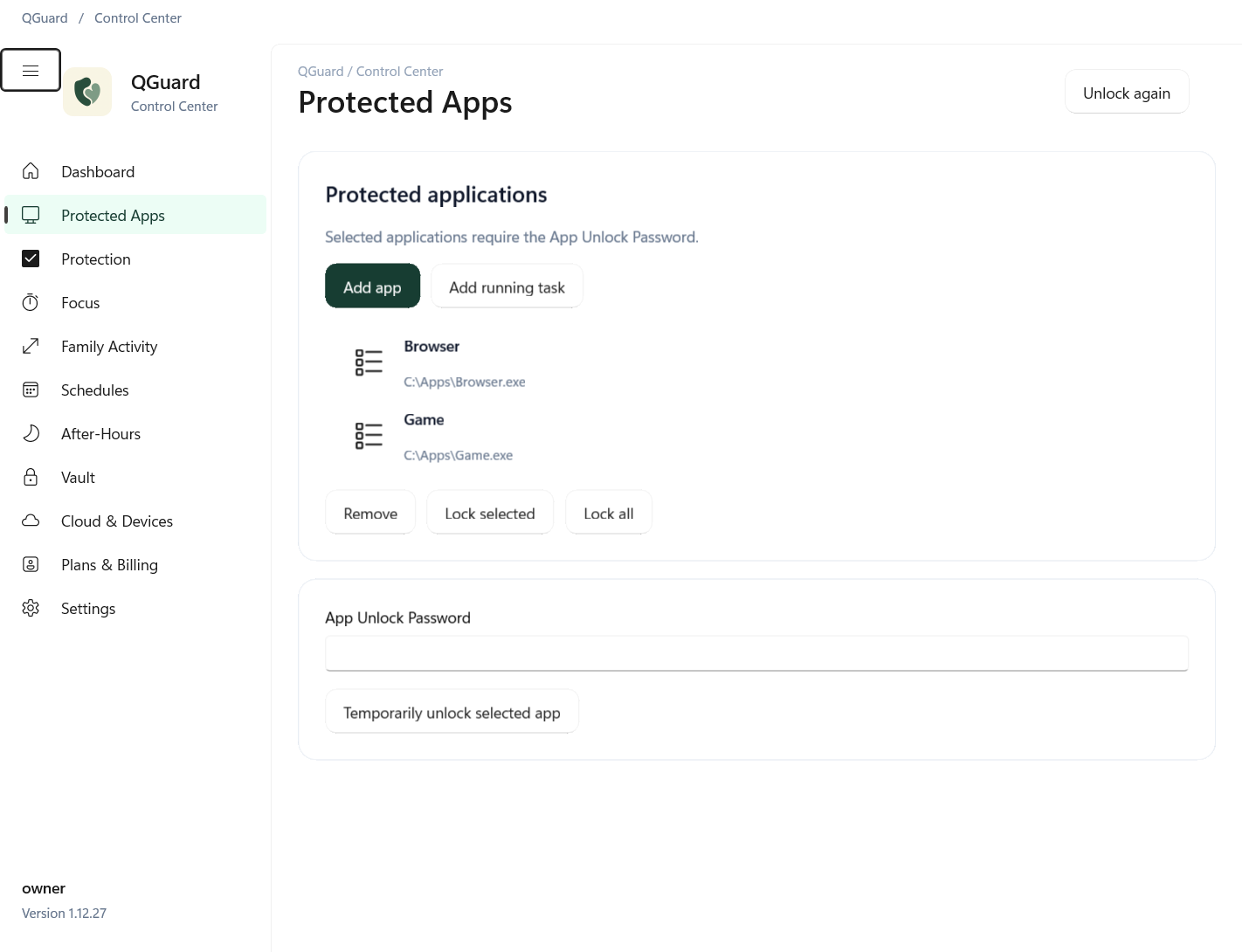
Install QGuard and open it as an administrator in the app. Keep your Access Password private. The example screens below may look slightly different from your version.
Choose the apps to protect
- Open Protected Apps from the side menu.
- Select Add app. Choose an installed app, or browse to its file.
- Select the app in the list, then use Lock selected.
- Open the app to check that your rule works.
Keep essential apps available. To remove a rule, select the app and choose Remove.
Set up your phone
- Open Settings using the gear icon.
- Open the permissions page. Enable the access needed for the features you want, then return to QGuard.
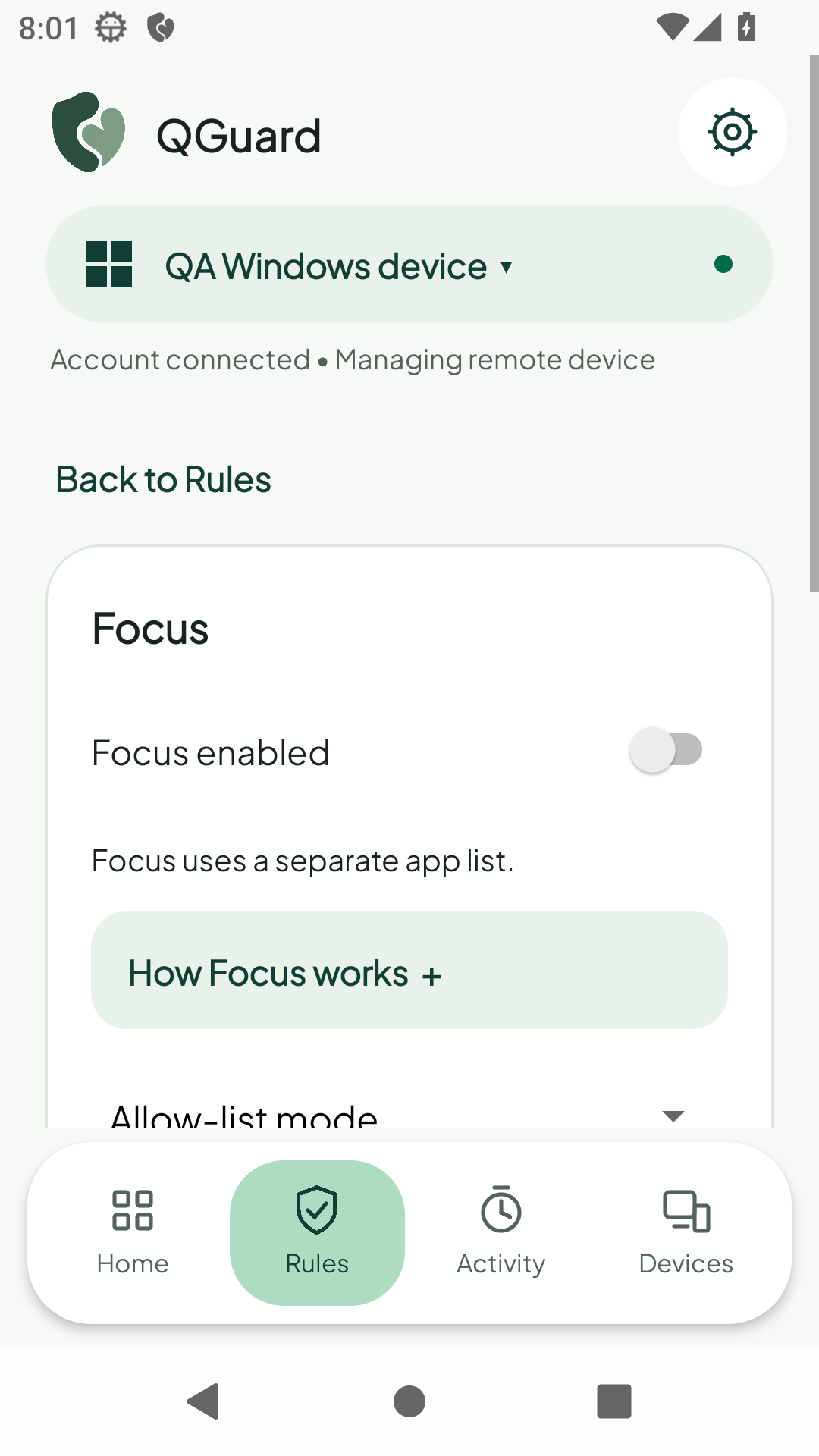
- Open Rules to choose app controls or Focus.
- Check the device name at the top before changing a rule.
The green dot means online; red means offline. If protection stops, check permissions and your phone's battery settings.
Start a Focus session
Open Focus, choose the apps for that session and save your choices. Start a session from Home or Dashboard using the time you need.
Focus has its own app list. Turn Protection mode off before starting Focus; the two modes cannot run together.
Choose what can be browsed
- Open Web Protection on a supported device.
- Turn it on. Choose any categories you want to block, then apply your choices.
- Add a site to the blocked or allowed list when you need a specific rule.
- Reopen the browser and test a site you have blocked.
Local Web Protection is available in the Windows website edition. It is not included in the Microsoft Store edition. On Android, enable the requested protection access first.
Some browsers, apps or VPN connections may not be covered. App blocking is not a guarantee that a website or download is safe.
Make room for study or rest
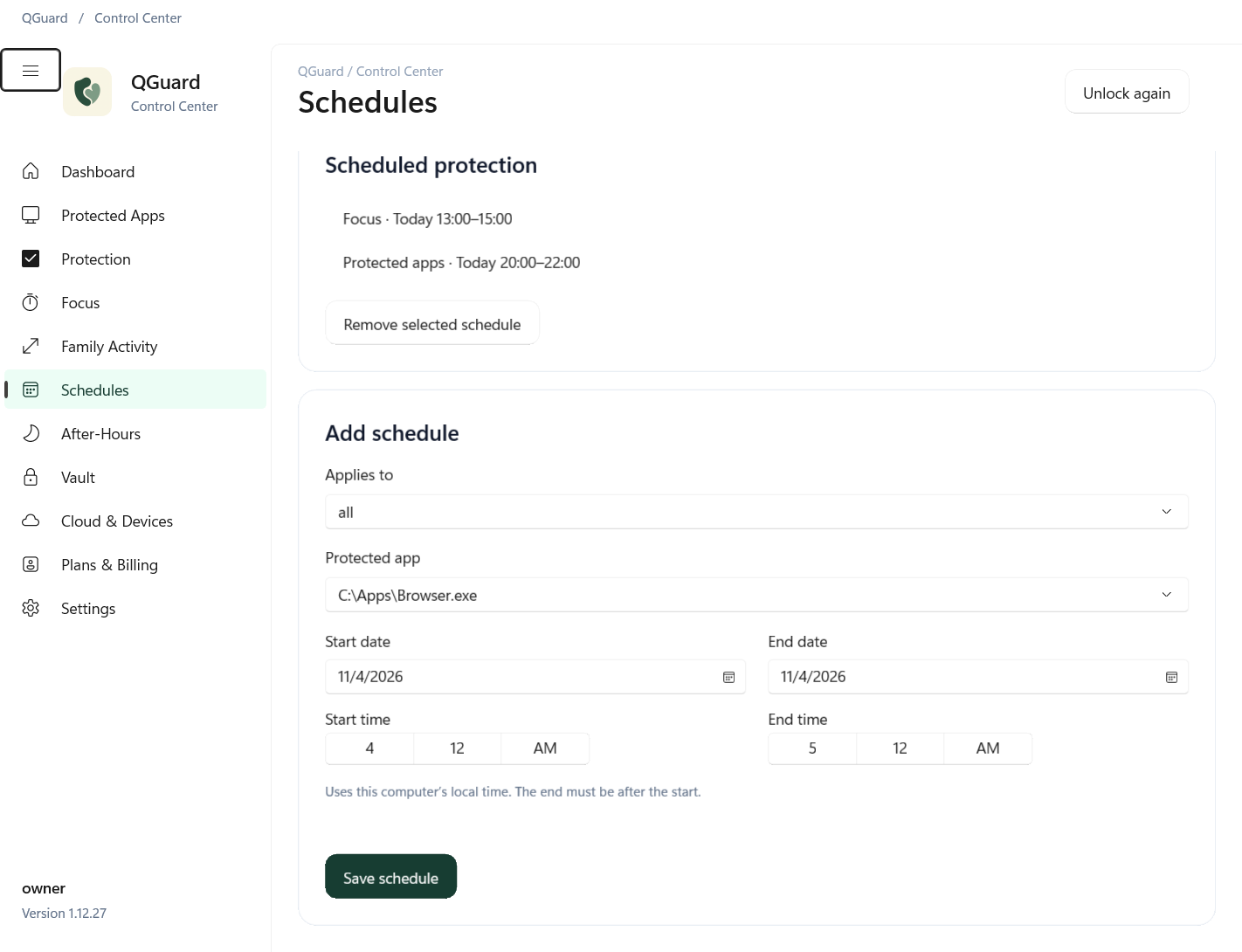
- Open Schedules.
- Choose the control or app the schedule should use.
- Pick the start and end dates and times.
- Select Save schedule, then check it in the list.
Check the selected device's local time. The end must be later than the start.
Right device. Right rules.
- Sign in and connect the devices you are allowed to manage.
- Choose a device from the selector on Home or Dashboard.
- Check its name and online status.
- Change the rule and save. Wait for confirmation that the device applied it.
An offline device needs to reconnect before it can receive a change. Required permissions must also be on.
Connected-device management needs an eligible plan. Client users cannot change administrator rules.
Something not working?
An app is still allowed or blocked
Check the selected device and the app list for the mode you are using. Save the rule and wait for it to apply. Test the app again.
The device is offline
Check its internet connection. Open QGuard on that device and check its required permissions. Then refresh its status.
A feature is missing
Available controls depend on the device, app edition, permissions and plan. Local Web Protection and Download Guard are not in the Microsoft Store edition.
Where do I get more help?
Contact QGuard support and include your device model, app version and what happened. Never send a password.
Ready to try it?
Start with one rule. Test it, then add the controls your family needs.